Screen saver for macOS
Counts down quietly while your Mac rests.
Minimal Countdown counts down to — or up from — a date you choose, in big, calm digits.
-
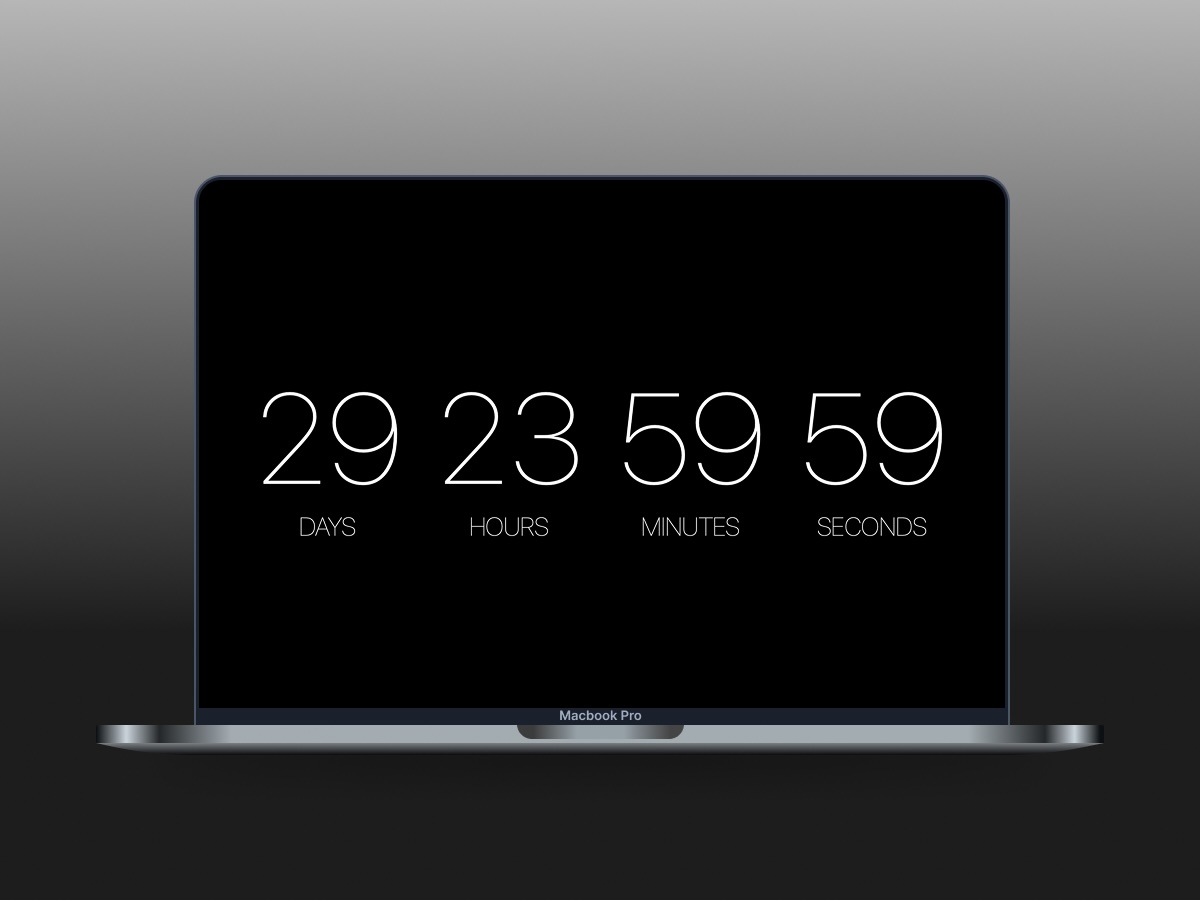
Quietly ticking. Days, hours, minutes and seconds, in thin digits on black, while your Mac rests.
-
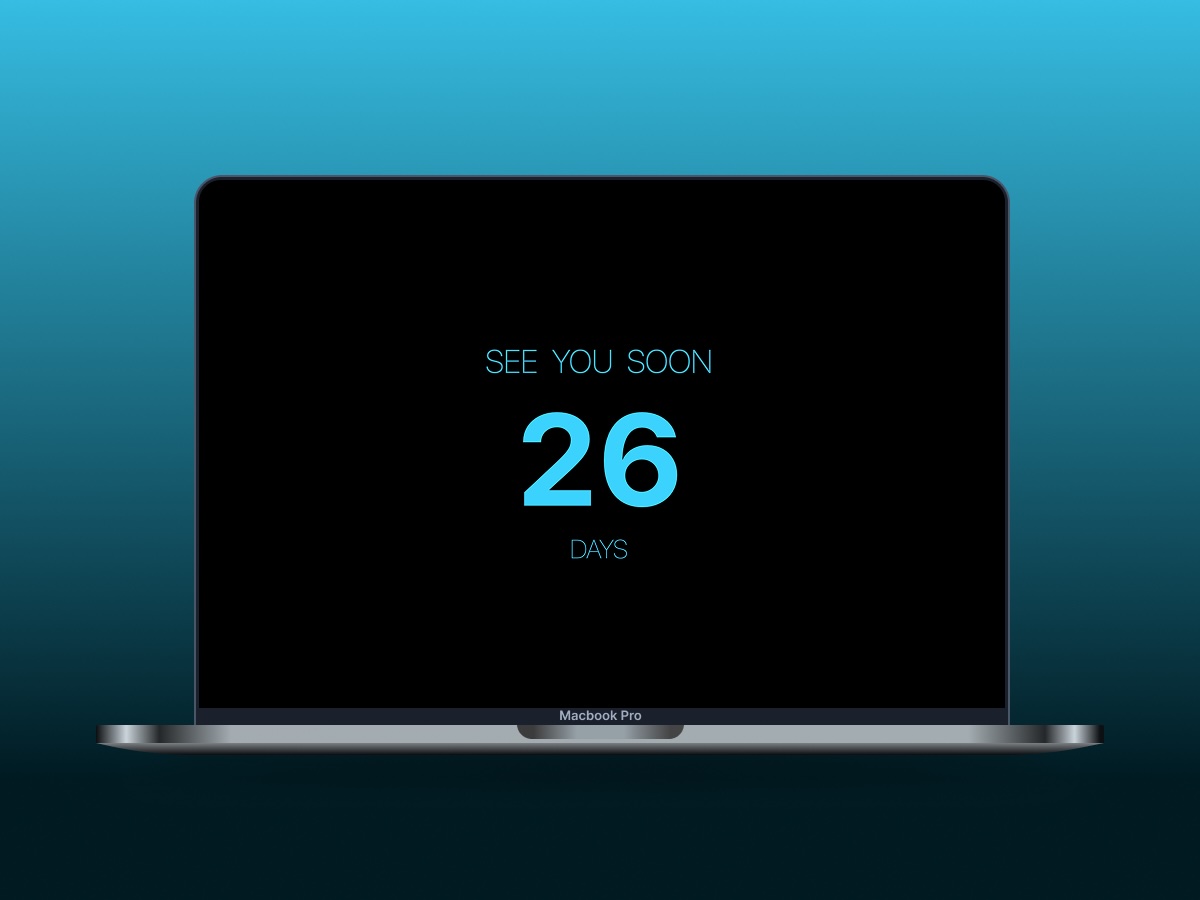
Just what you need. Add a short title, and show only the units you want — here, just the days.
-
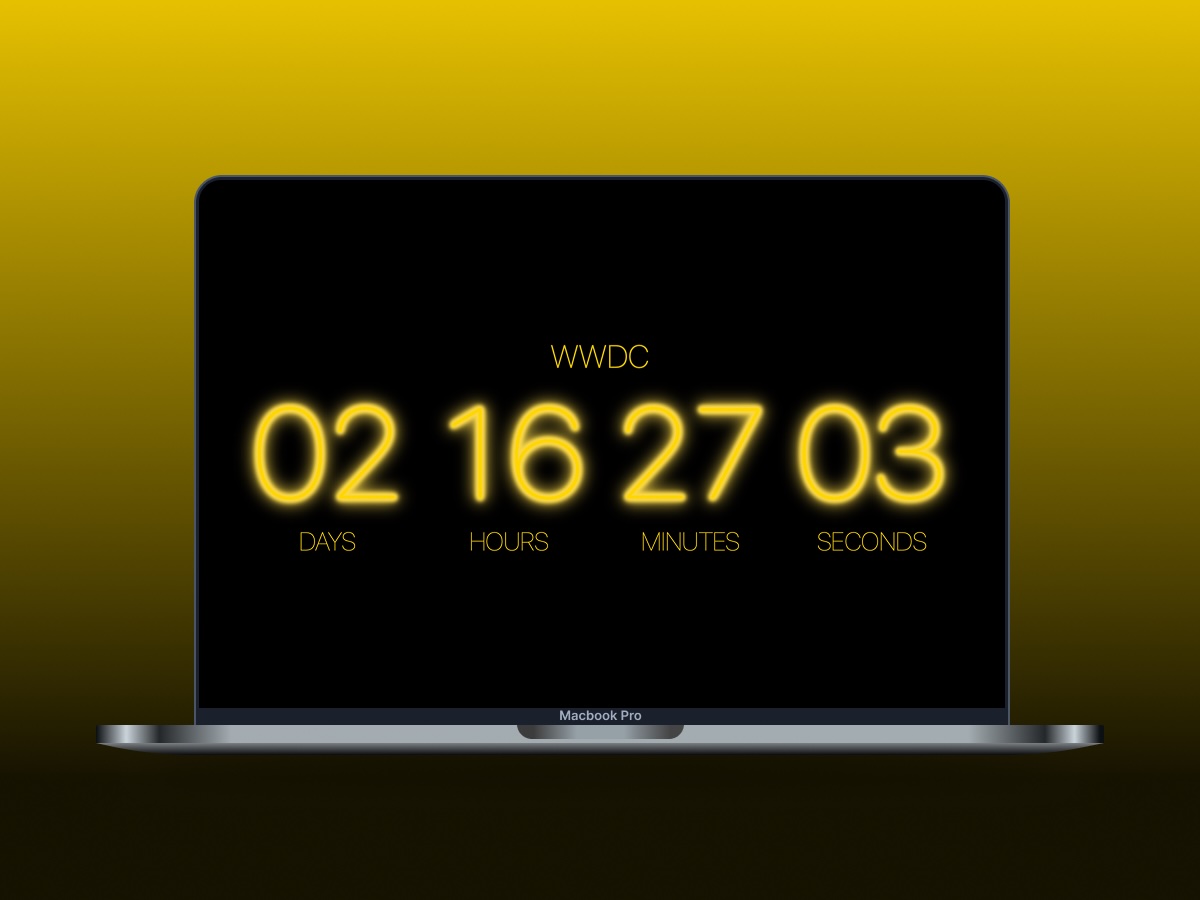
Make it glow. Pick one of 11 accent colors and a digit effect: blur, inner glow, backlight or glow.
-
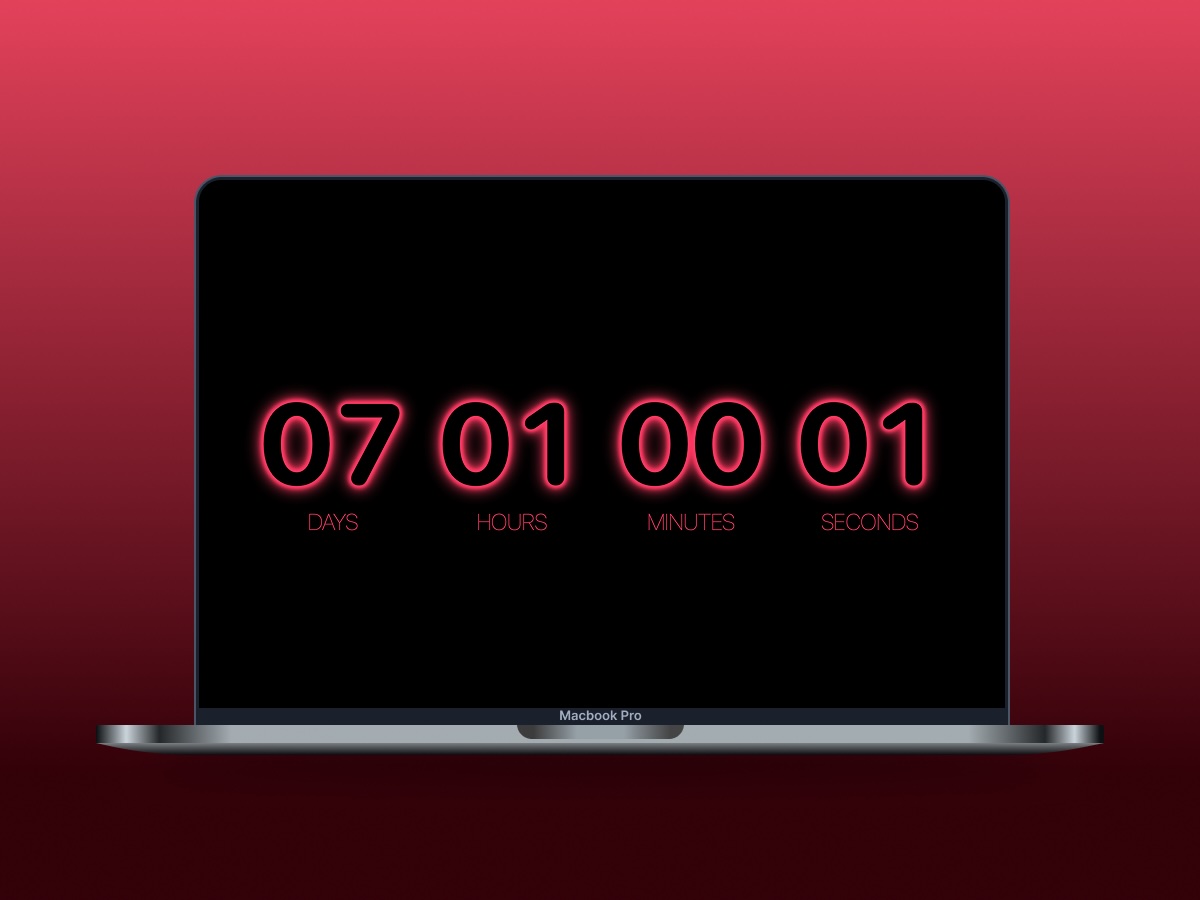
Your style. Bold, rounded digits with a glowing outline — set the weight, the effect and its color to taste.
Features
Simple to set, nice to watch.
Counts down — or up
Set a date and time up to 999 days away. Past dates count up in Stopwatch mode, and the timer switches to it by itself at zero.
Title and units
Add a short title above the timer. Show days, hours, minutes and seconds — any of them — and hide the labels if you like.
Color and brightness
11 accent colors and three brightness levels to dim the digits to taste.
Digit effects
Blur, inner glow, backlight or glow, with a custom effect color — or none, for the classic look.
Digits your way
Adjust the font weight, switch to rounded digits, and choose a numeral system: Western, Eastern Arabic and more.
10 languages
English, Spanish, German, French, Russian, Hebrew, Arabic, Persian, Hindi and Sanskrit — with right-to-left support in Settings.
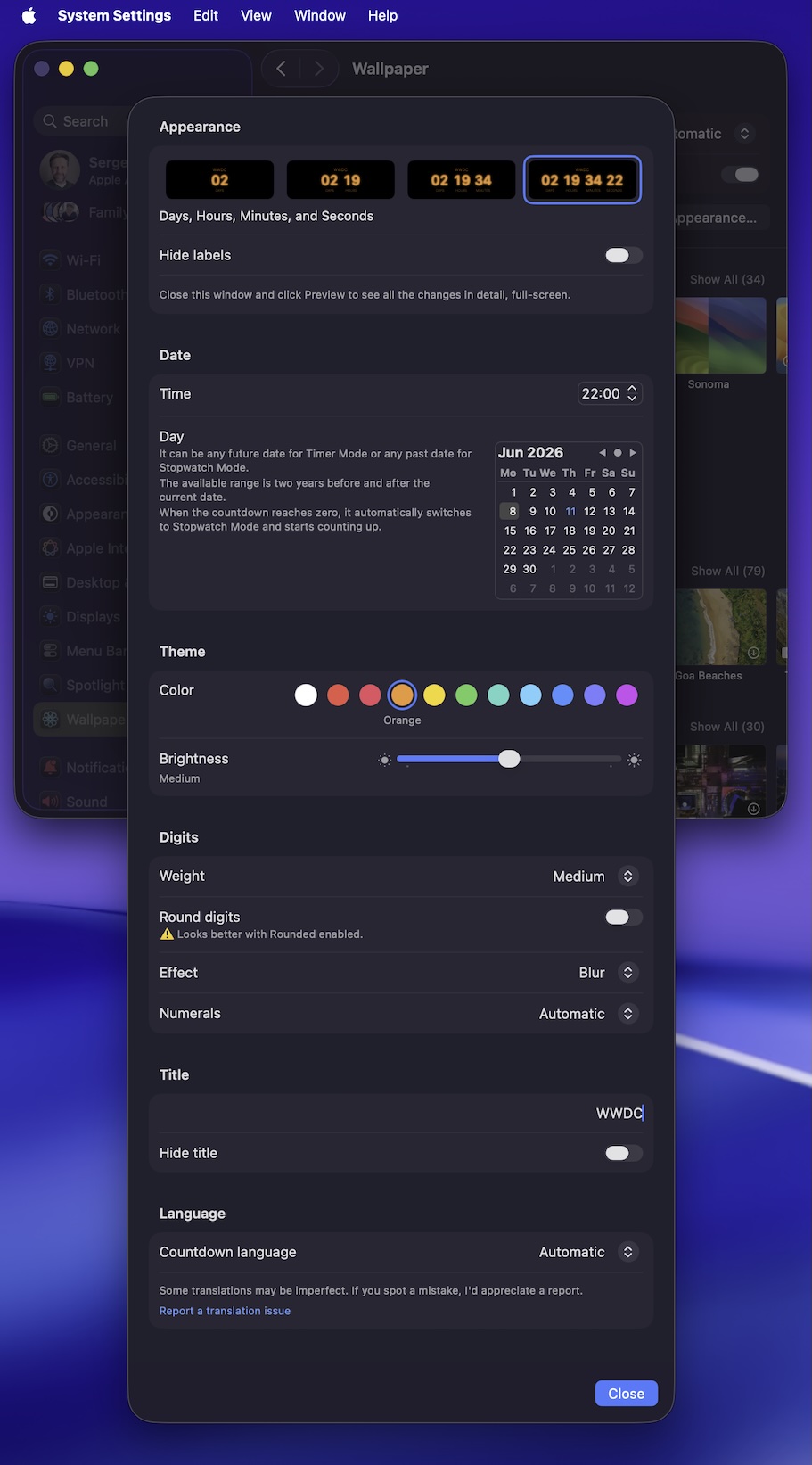
Settings
All in one window.
Open System Settings → Wallpaper → Screen Saver…, select Minimal Countdown and choose Options… to set everything up.
Settings live in their own file, so you can copy them to your other Macs.
Install
Unzip, double-click, done.
- Download the latest release and unzip it.
- Double-click
MinimalCountdown.saverand choose whether to install it only for you or for all users. - No warnings to click through: Apple has checked it for malicious software.
- Customize the settings to fit your imagination — and enjoy it.
- New version out? Download it and install it the same way.
Reinstall
Need a fresh start?
If something looks wrong after an update, remove the screen saver and install it again.
- Open System Settings → Wallpaper → Screen Saver… (macOS 26 Tahoe), or System Settings → Screen Saver on earlier versions.
- Control-click Minimal Countdown, choose Delete "Minimal Countdown", then Move to Trash.
- Close System Settings, then run
killall WallpaperAgentin Terminal — or just restart your Mac. - Install
MinimalCountdown.saveragain the same way as above.